Thousands
of iPhone photos.
Time to take
control.

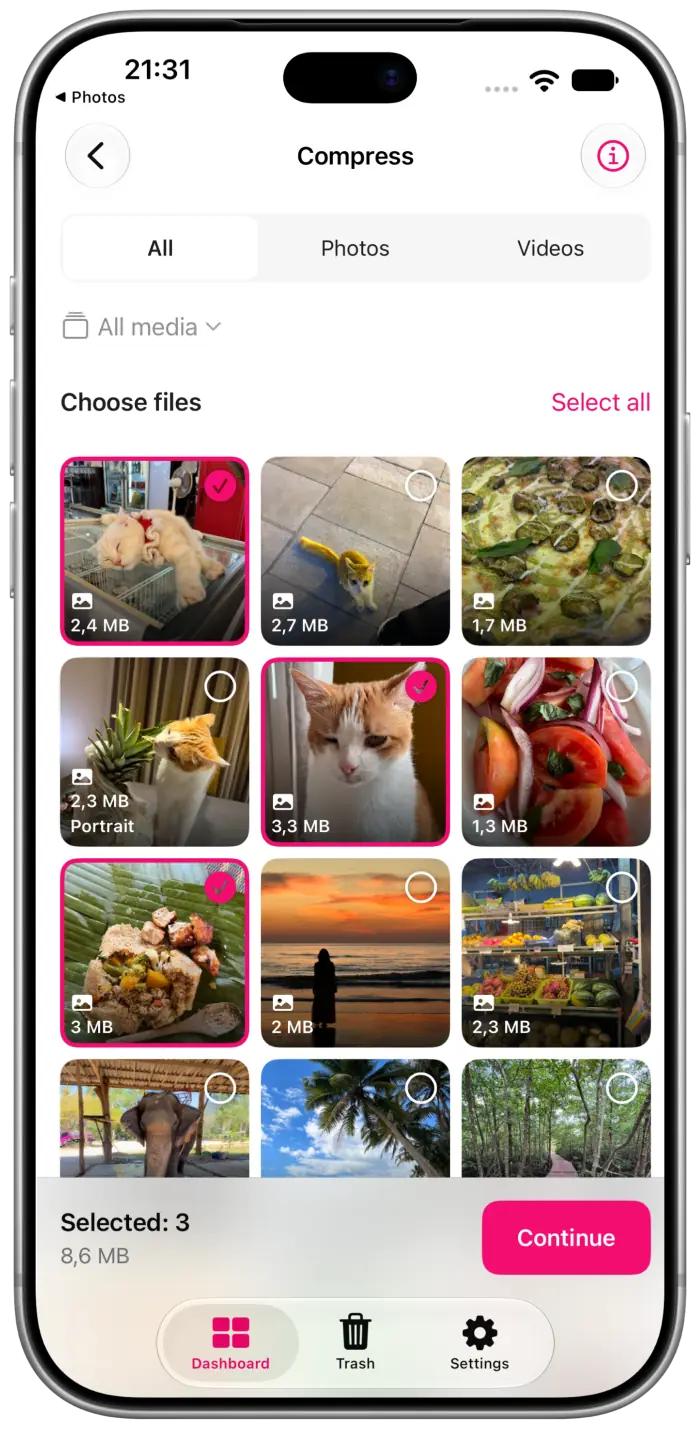
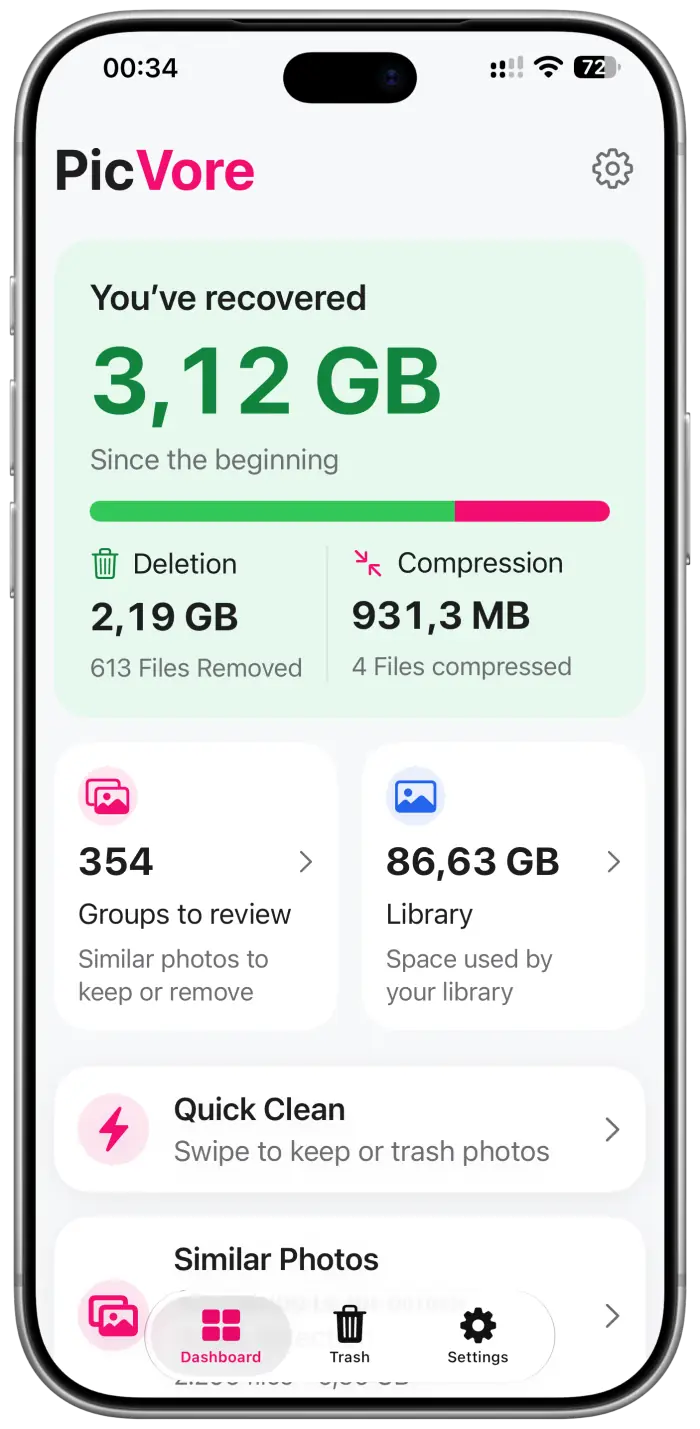
PicVore helps you work through your iPhone photo library with swipe or gallery review, focused cleanup categories, a photo map, and on‑device similar-photo suggestions. You decide what stays and what moves to PicVore’s Trash.

You keep putting it off.
We get it.

Your photo library has grown for years. Near-identical burst shots from the same moment. Screenshots you meant to delete. The pile grows faster than you can manage it — and every time you open Photos, the task feels more impossible. So you close it and come back another day.

  • Near-identical burst shots you never sorted through
  • Screenshots you meant to delete months ago
  • No structure, no momentum — just endless scrolling
  • Decision fatigue before you’ve even started

Start where it makes sense
for your library.

Review your camera roll directly, narrow it down by date or album, open a focused category, explore photos on a map, or check groups of visually similar shots. Each route leads to the same deliberate review flow.

Browse & Review

Swipe one by one.
Or select several
from a gallery.

Switch between a focused swipe view and a multi-select gallery. You can begin from your full library or a smaller set chosen by date, album, category, or place.

Explore photo cleanup
Similar Photos

Smart groupings.
One suggestion.
Your final call.

On-device analysis groups visually similar photos and may suggest one to keep. Treat the suggestion as a starting point: you make the final choice.

Explore similar photos

One photo at a time,
one clear choice.

In swipe view, each photo gets the full screen. Swipe or use the action buttons to keep it or move it to PicVore’s Trash, then continue to the next photo. Undo is available if you want to revisit the last choice.

Swipe right to keep
Swipe left to trash
  • Keep Swipe or tap to keep, then continue with the next photo
  • Trash Swipe or tap to move a photo to PicVore’s Trash for later review
  • Undo Revisit the previous choice with the undo control
  • Focus See one photo at a time without a crowded thumbnail grid

Move between the big picture
and a focused collection.

PicVore gives you several ways to define what you want to review before you make any keep-or-trash choices.

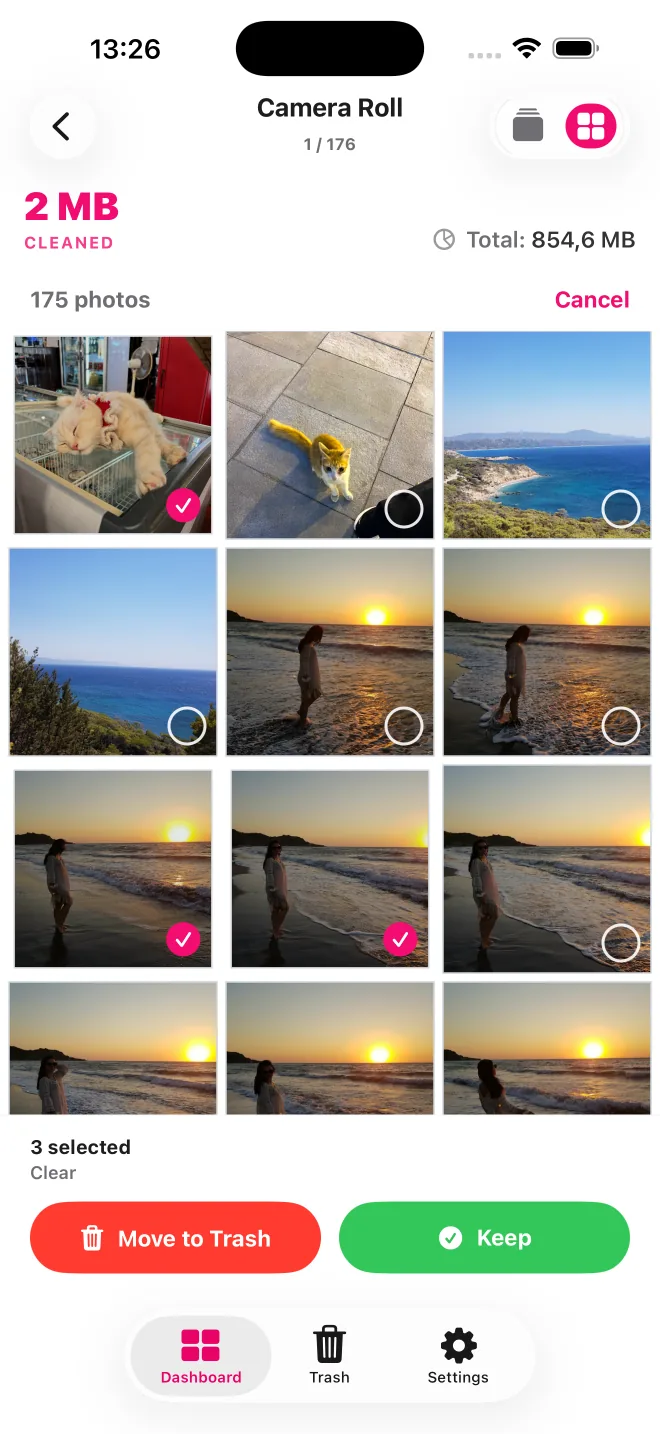
Gallery Review

Select several photos together

Switch from swipe view to a thumbnail gallery, select multiple items, then keep them or move them to PicVore’s Trash as a group.

PicVore gallery review showing several selected camera-roll photos and Keep and Move to Trash buttons

Cleanup Categories

Begin with a focused collection

Browse by date or album, or open collections such as screenshots, portrait photos, and large videos. Where available, counts and storage estimates describe a set before you open it.

PicVore Cleanup Categories showing date, album, places, screenshots, portrait photos, and large videos

Places to Review

Explore photos on a map

When location data is available, the map groups photos by place so you can open and review a geographically focused collection.

PicVore Places to Review map showing photo groups in different locations

Available categories and map groupings depend on the media and metadata in your photo library.

Let AI help surface
similar shots —
then you choose.

When you’ve taken five near-identical shots of the same moment, Similar Photos uses on-device analysis to group visually similar shots and may suggest one to keep. Accept the suggestion, or browse the group and choose for yourself. The suggestion is a starting point — not a final verdict.

  • Group Visually similar photos are grouped for a focused review
  • Suggest On-device analysis may suggest a photo to keep
  • Keep Accept the suggestion or browse the group and choose your own
  • Control Removal still requires your explicit confirmation

Suggestions are a starting point. Every final decision is yours.

A typical session, from choosing
a view to confirming removal.

  1. 01

    Choose where to begin

    Open your camera roll, filter by date or album, choose a cleanup category, browse places on the map, or review groups of similar photos.

  2. 02

    Review your way

    Swipe through photos one at a time or use the gallery to select several. Similar-photo suggestions can help you start, but the choices remain yours.

  3. 03

    Mark for deletion

    Photos you mark first go to PicVore’s Trash. You can inspect the selected items and restore any of them before confirming removal.

  4. 04

    Confirm with confidence

    When you’re ready, review PicVore’s Trash and confirm the removal. PicVore only proceeds with the deletion request after that additional step.

Different views for
different cleanup tasks.

A full-screen photo, a multi-select gallery, a category, a map, or a similar-photo group each provides different context. PicVore lets you choose the view that fits what you want to review.

Choose the amount of context you need

Use swipe view when you want to focus on one photo, or gallery view when comparing and selecting several thumbnails makes more sense.

Narrow a large library before reviewing

Dates, albums, screenshots, portraits, large videos, and places provide focused starting points instead of requiring one long camera-roll session.

Keep removal as a separate decision

Items marked from any review route collect in PicVore’s Trash, where you can check the selection and represented storage before confirming removal.

Mark photos for deletion.
Confirm with confidence.

Items you mark for removal first go to PicVore’s Trash, a review space that shows the selection and an estimate of the storage it represents. Restore individual items or confirm the selection when you’re ready.

The Trash Bin

A staging area between your review choices and the removal request.

  • Marked items are staged before removal
  • Restore items before you confirm
  • Review selected items and their estimated storage
  • Removal requires a separate confirmation

Your library
won’t sort
itself.

Choose a focused view, review at your pace, and confirm only the items you want to remove.

Get PicVore

Available for iPhone with iOS 17.0 or later. Free to download with daily limits; optional weekly and annual auto-renewable Pro subscriptions remove those limits. Prices, availability, any trial eligibility, renewal terms, and cancellation details are shown in the app and may vary by country.